Things 3.7 Brings Siri Shortcuts and More

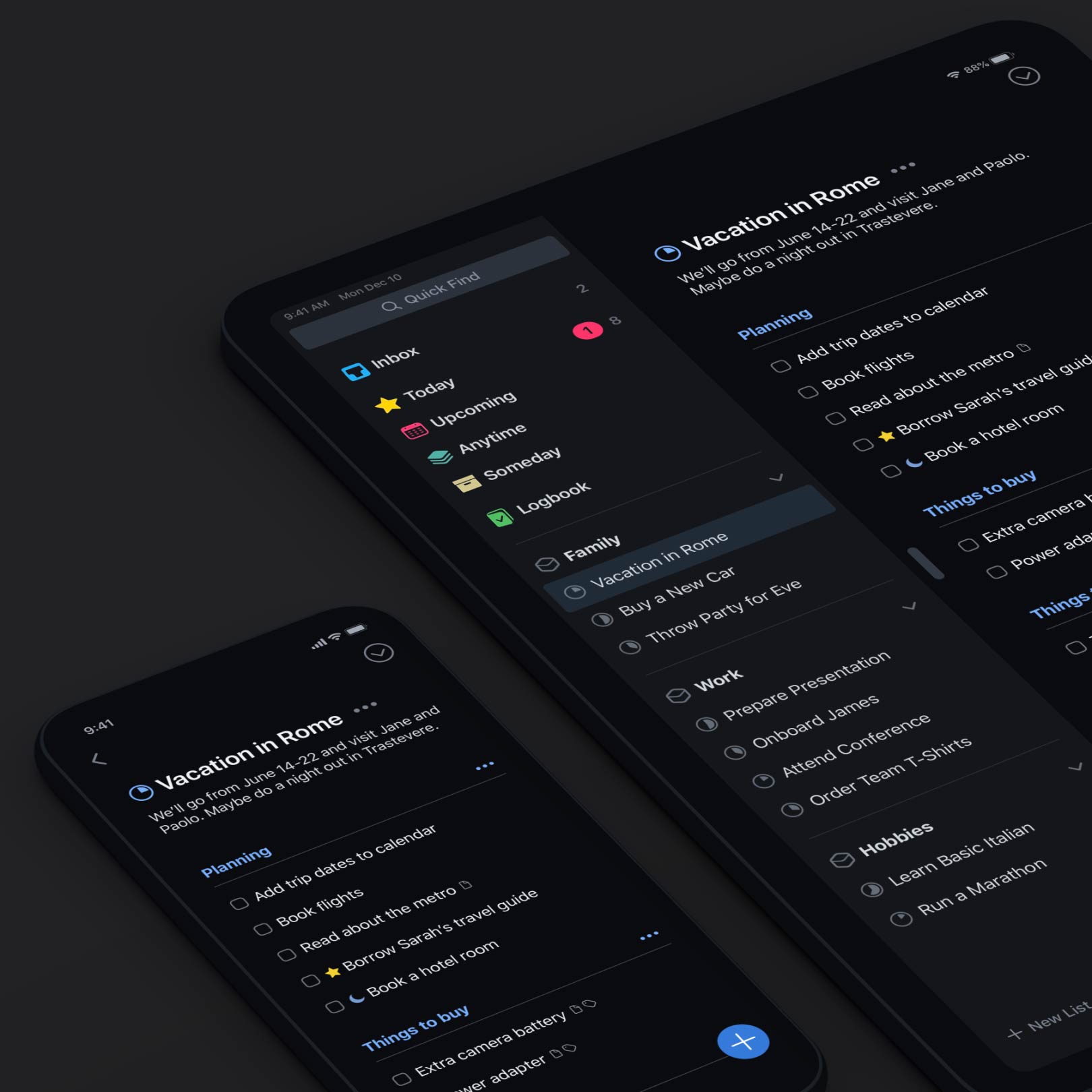
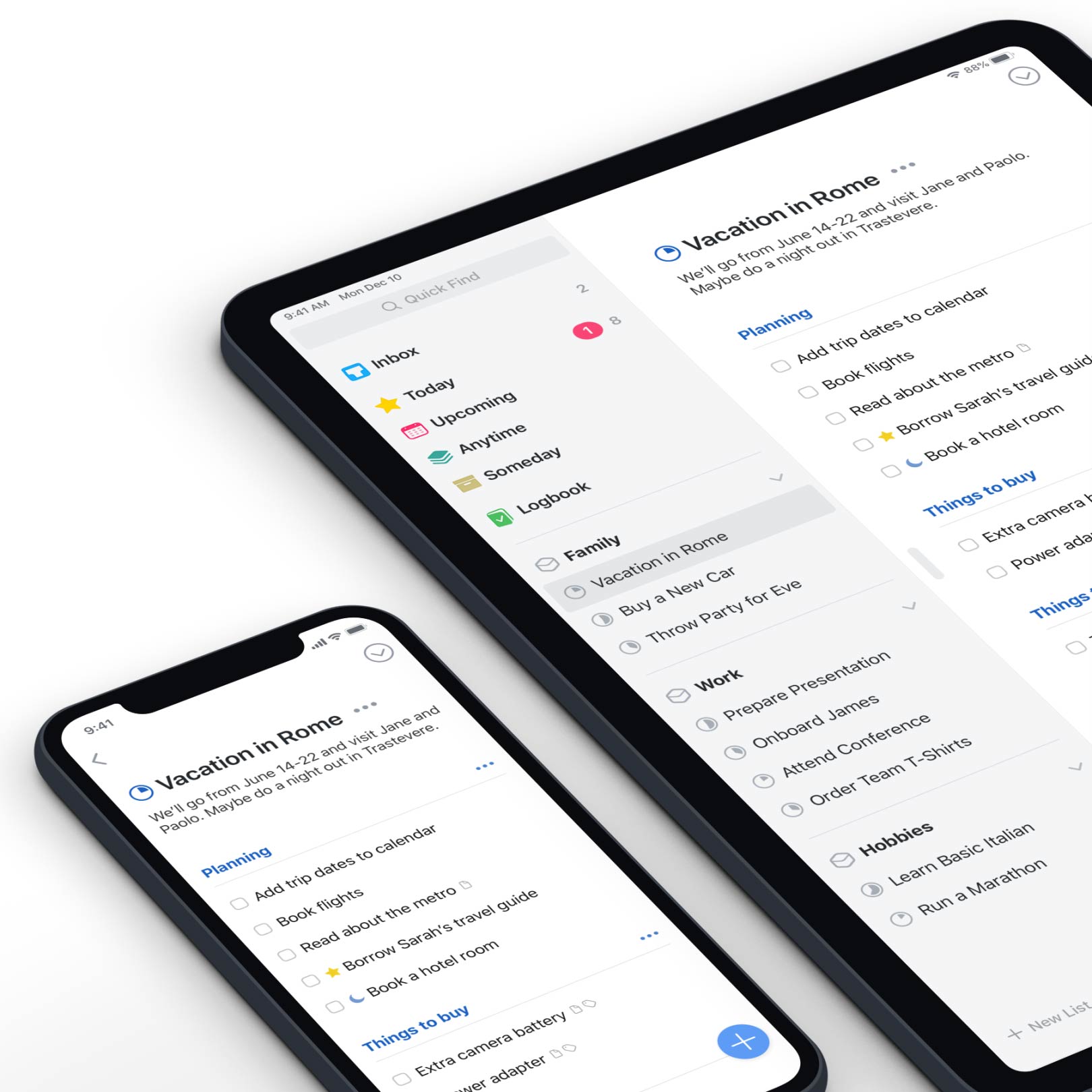
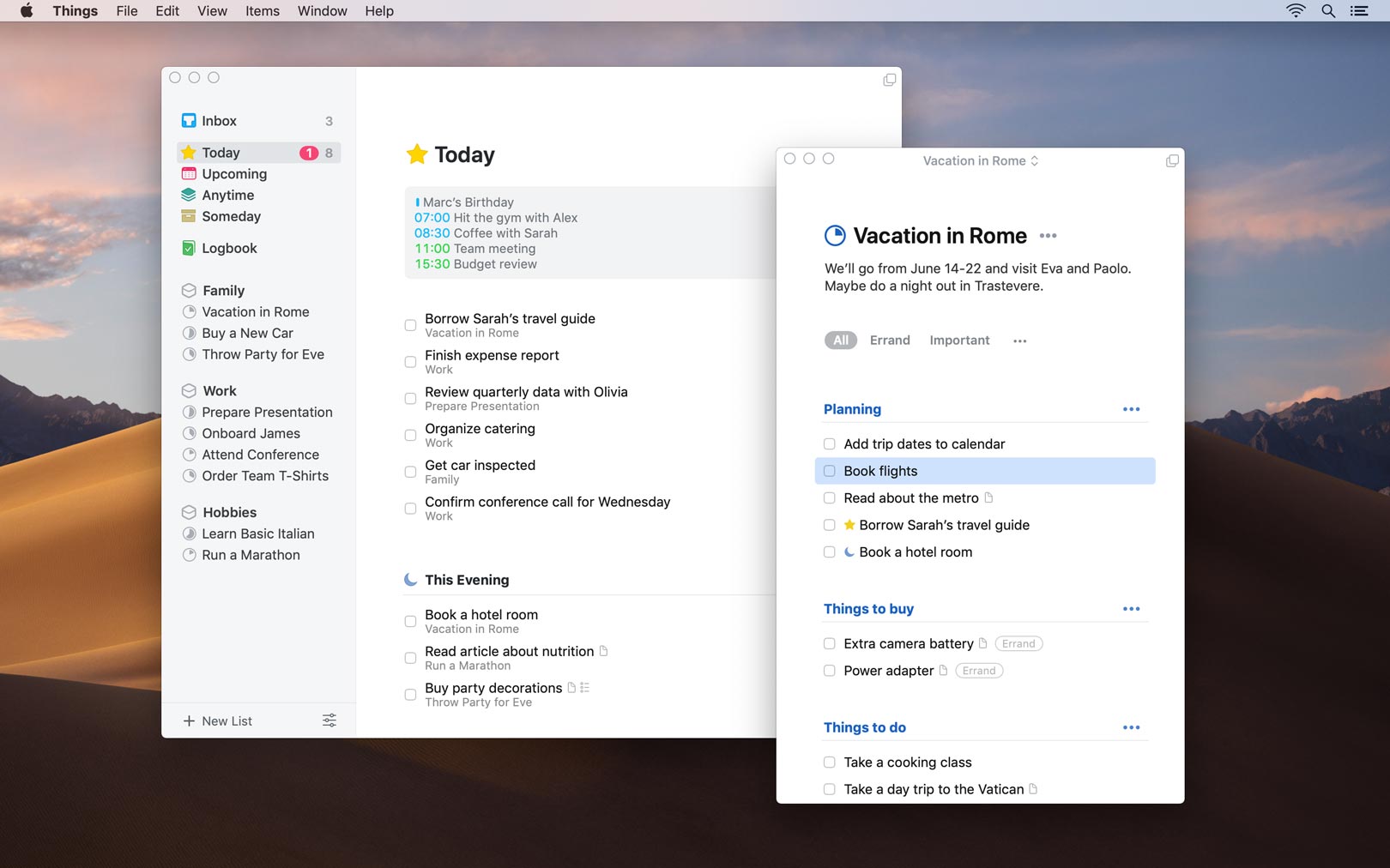
Today’s update is packed with great new features for iOS 12 and watchOS 5 – including support for Siri Shortcuts, the Apple Watch Series 4 and the Siri watch face, Dynamic Notifications, Password AutoFill, and Landscape Mode for iPhone. Let’s dive in!

Things 3.7 for iOS 12

Siri Shortcuts

The biggest new feature in iOS 12 is Siri Shortcuts, a new technology that’s all about speeding up the things you do often. For Things, these shortcuts open up some exciting new avenues for productivity, and we’d like to walk you through five different ways you can use them.

1. Siri gets to know you better

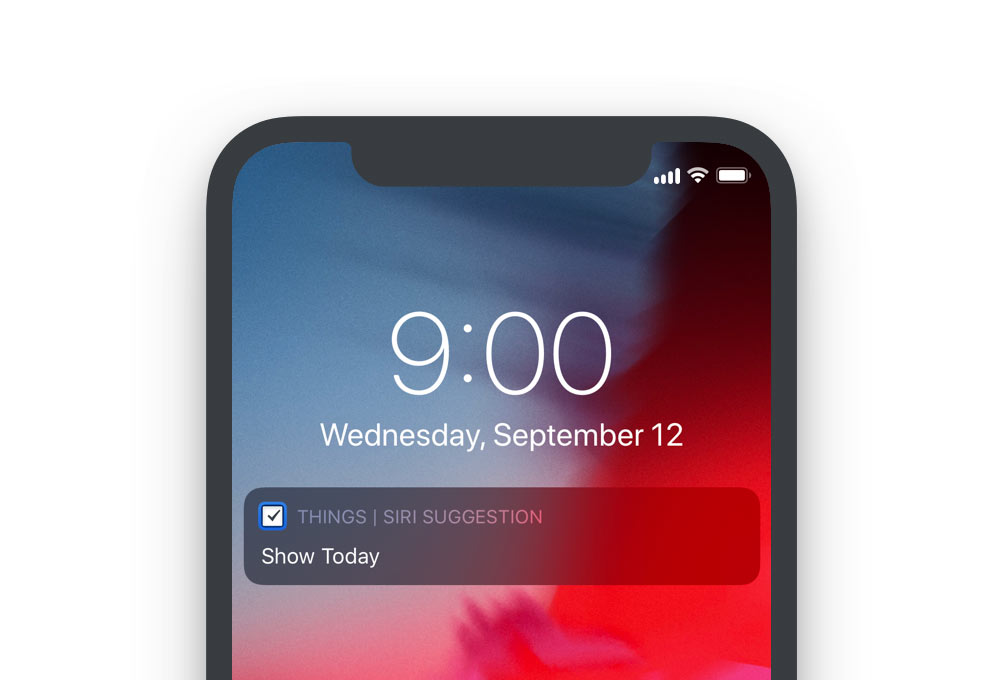
Siri can now learn your routines and begin suggesting things that you might want to do. For example, if you open your Today list every morning around 9 AM to look over your to-dos, Siri will eventually pick up on this – and the next morning at 9, you might be greeted with a new “Show Today” shortcut right on your Lock screen. Tap the shortcut, and you’re instantly brought to the right place within Things. It removes a little bit of friction, and feels surprisingly delightful when it happens.

Siri Suggestions
If you do something repeatedly, Siri will suggest a shortcut on your Lock screen.

2. Build your own Quick Entry

Things is great for collecting stuff you want to review and act on later, like remembering things you have to do around the house, groceries you need to buy, work tasks, and so on. When an idea hits you, you would normally open Things to enter it, maybe apply a tag or a date, and then select a list where it should go. Instead of doing these same steps over and over, you can now record a shortcut to speed things up.

In Things, go to Settings > Siri & Shortcuts > Add To-Do. Fill out everything that’s always the same for this particular type of to-do, then tap Add to Siri and speak your own phrase, like “new home improvement idea”.

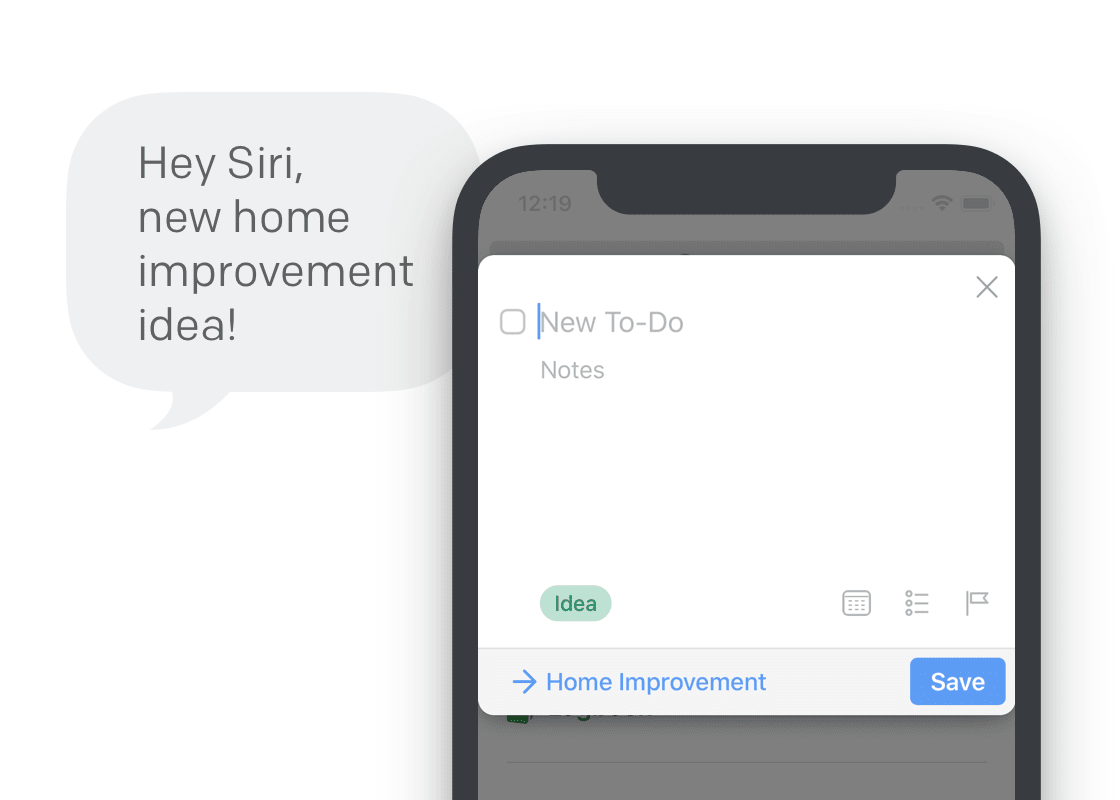
Now the next time you want to jot something down, you can just say “new home improvement idea”, and you’ll be presented with a prefilled Quick Entry popover. All you need to do is enter the title and hit save!

“Hey Siri, new home improvement idea!”
Record a phrase to show a prefilled Quick Entry popover in Things.

3. Ready-made to-dos

Some of the things you do are always exactly the same. Say you travel a lot – you probably have a well-refined packing list you run through before every trip. Now, at the command of your voice, you can instantly create a to-do with that packing list.

Just go to Settings > Siri & Shortcuts > Add To-Do, and fill out everything you need in your to-do. Make sure Edit in Things is deselected so the to-do is created in the background, then tap Add to Siri and record a phrase, like “it’s travel time”.

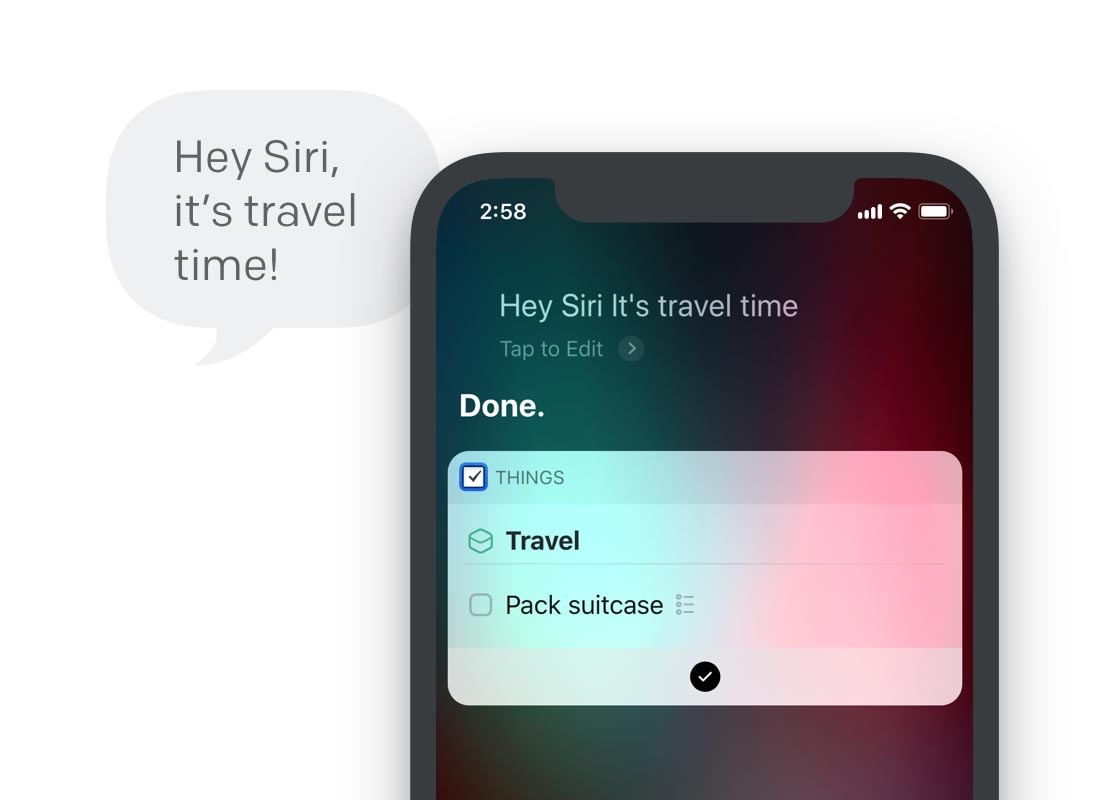
When a new trip is coming up, just say: “Hey Siri, it’s travel time.” You’ve forgotten your socks for the last time 😀

“Hey Siri, it’s travel time!”
Record a phrase to quickly create to-dos you need often.

4. Quick access to lists

If you have a specific list that you need to refer to often throughout the day, you can create a shortcut that quickly brings you there. Go to Settings > Siri & Shortcuts > Show List to record your custom voice phrase for it.

You can even set it up to filter that list when it opens. For example, “Hey Siri, show me today’s errands” can open your Today list and automatically filter it by your “Errands” tag.

5. Workflows!

Lastly – but for power users certainly not least – these shortcuts are integrated with Apple’s new Shortcuts app. What’s great about the Shortcuts app is that it allows you to pull actions together from multiple different apps into one powerful, multi-step workflow.

Matthew Cassinelli over at The Sweet Setup had an early go at creating shortcuts for Things and plans to share useful workflows he’s coming up with. We can’t wait to see the creative ways you’ll all put this to use!


Dynamic Notifications

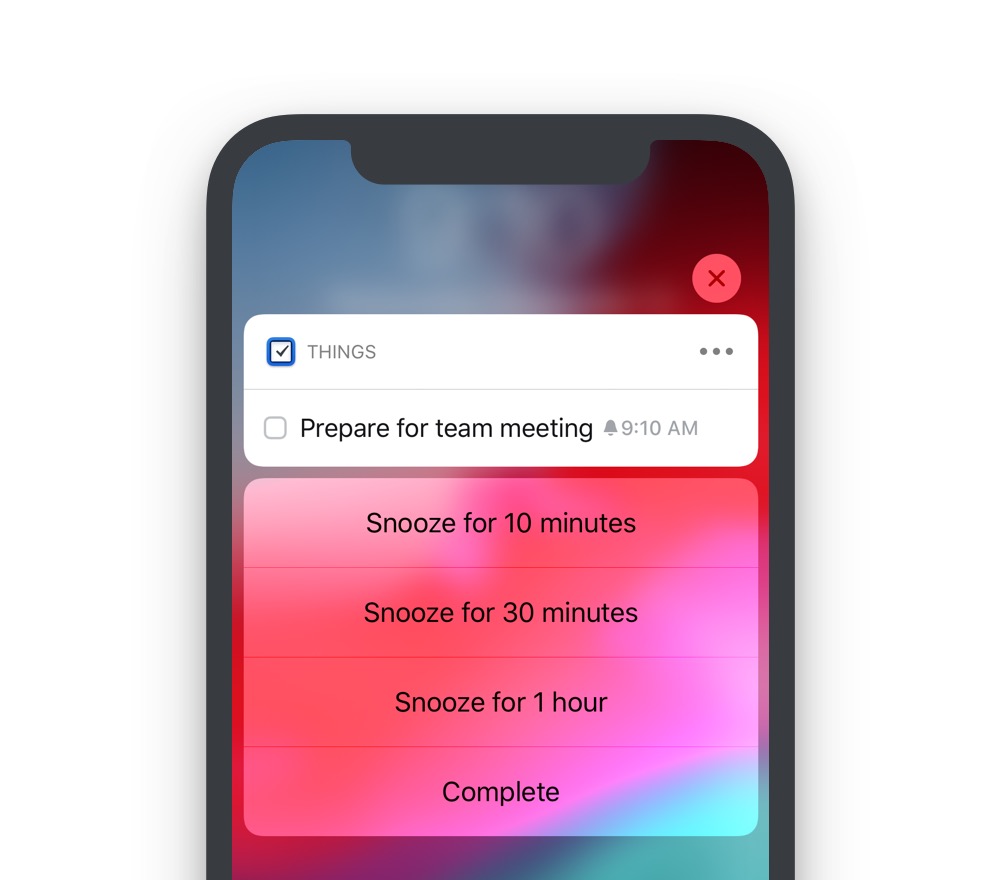
When you get a notification from Things, tap the Snooze button and you’ll notice that you now have granular control over the duration of the snooze: 10 minutes, 30 minutes, 1 hour.

Dynamic Notifications
The new options are revealed when you press the “Snooze” button.

Password AutoFill

Things supports iOS 12’s new Password AutoFill feature. It creates a strong password for you, keeps it safe, and automatically enters it for you when you log in on a new device. All of this now works with Things Cloud.


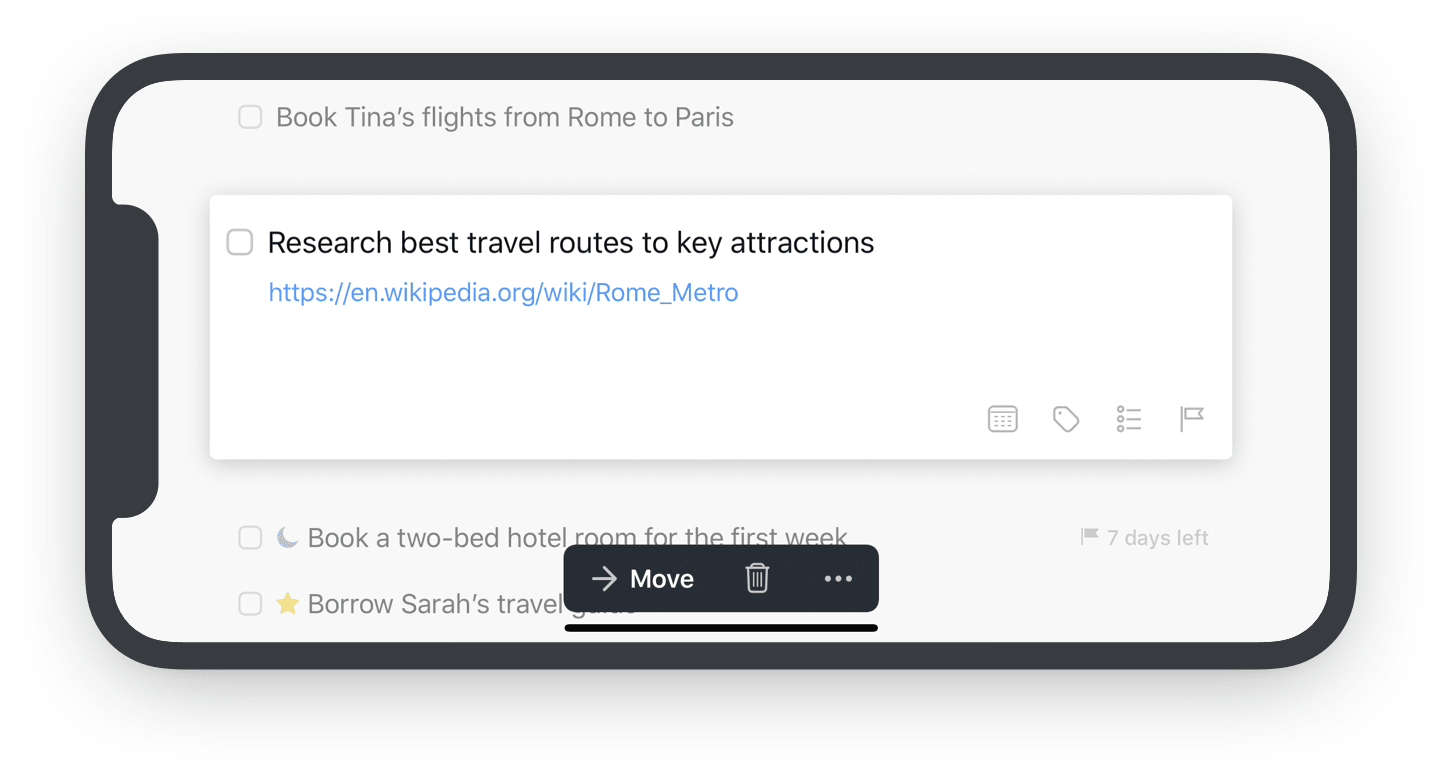
Landscape Mode

Turn your iPhone to the side, and behold – our shiny new landscape mode 🙃

Landscape Mode

Apple Watch

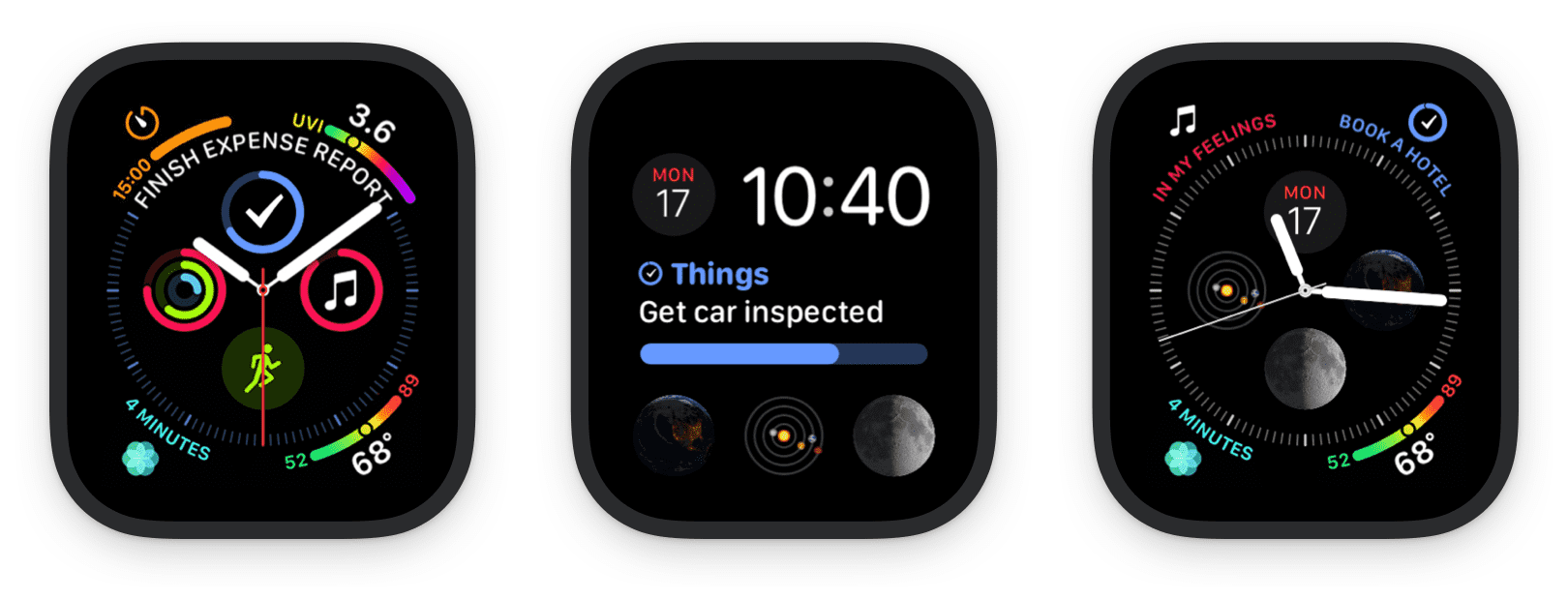
We’ve also added full support for watchOS 5 and Apple Watch Series 4. You’ll notice Things now appears on the Siri watch face; it shows the next to-do from your Today list, and how many to-dos are left for the day.

For the Series 4, we’ve built four great new complications for the new Infograph watch faces.

New Complications

Things 3.7 is available for download from the App Store now. We hope you enjoy these features!

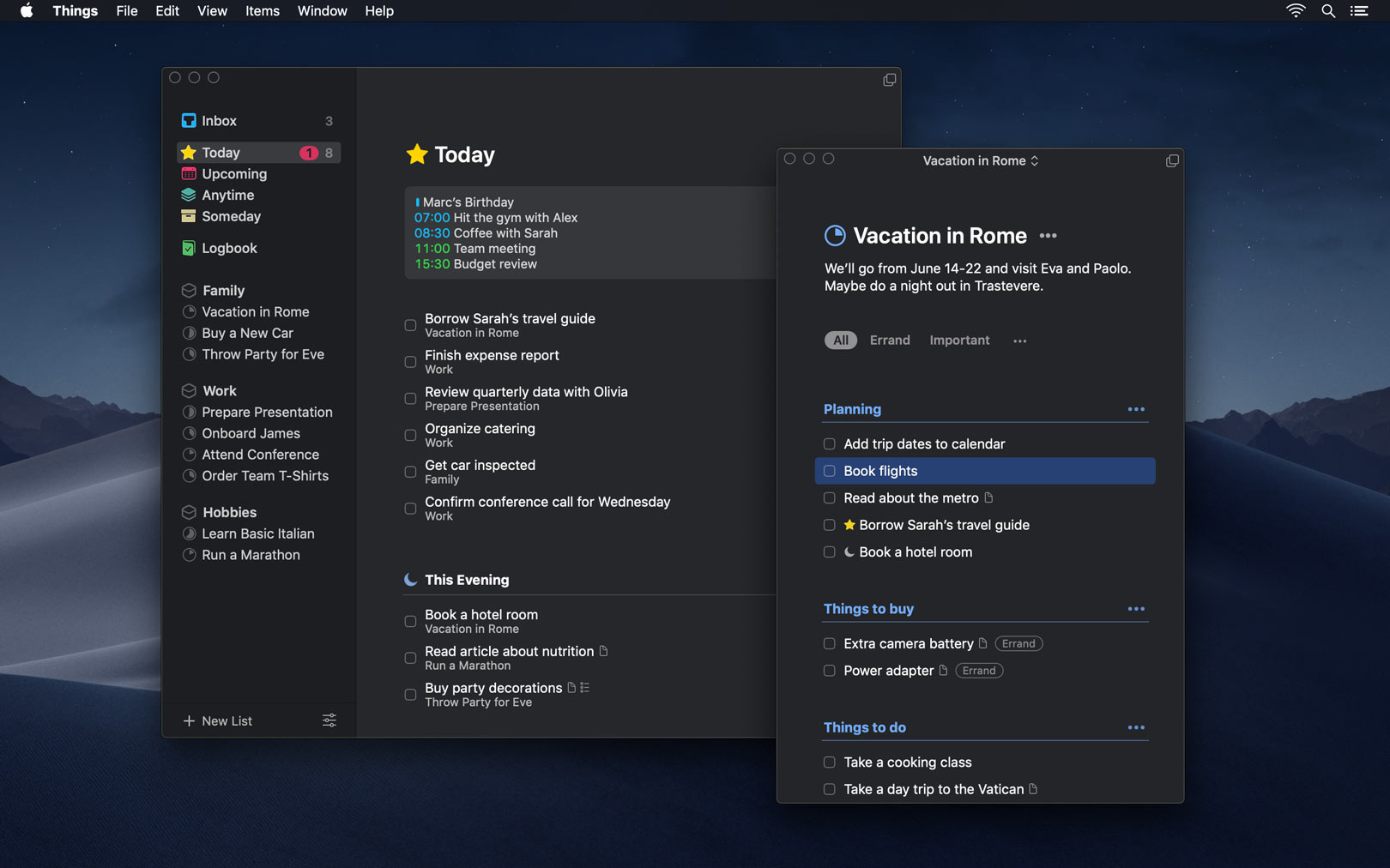
Until we meet again. In the Mojave desert. At night. 😱

Come Work With Us

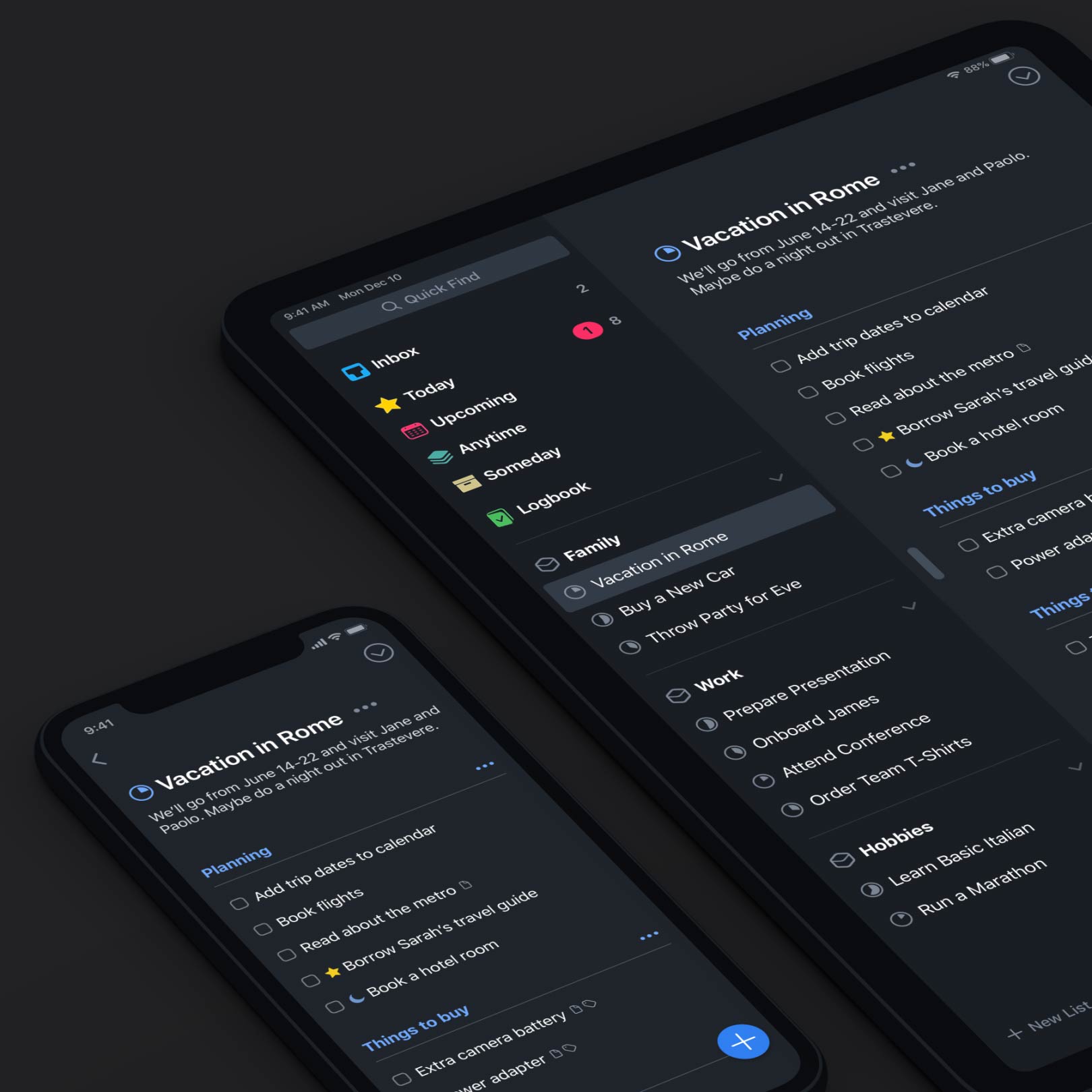
We have some big plans for Things and want to expand our team.

We 👩🏻‍💻👨🏿‍💻👩🏼‍💻👨🏾‍💻👩🏽‍💻👨🏽‍💻👩🏾‍💻👨🏼‍💻👩🏿‍💻👨🏻‍💻 are 👩🏻‍💻👨🏿‍💻👩🏼‍💻👨🏾‍💻👩🏽‍💻👨🏽‍💻👩🏾‍💻👨🏼‍💻👩🏿‍💻👨🏻‍💻 hiring!

We’re currently looking for an iOS/macOS Developer and a Sync Engineer. If that sounds like you or someone you know, head over to our jobs page and learn more.
We’d love to hear from you!

Applications are open until September 16.

Desktop-Class Productivity for iPad

We’ve just released an amazing update for iPad. With full support for external keyboards, powerful shortcuts, Type Travel navigation, and much more – Things 3.6 takes our iPad app to the next level. Try it today!

Play

The screen wasn’t touched once
in the recording of this video.

For this update we had one goal: make our iPad app truly desktop-class. To achieve this, we had to substantially improve support for external keyboards – and by that we don’t just mean adding a few more shortcuts. In fact, adding more shortcuts was only possible because of one of the key features in this release: the ability to select items from the keyboard.

Keyboard Selection

The lists you make in Things are constantly changing, so editing them has to be easy. Over the years, we’ve worked hard to make this feel as frictionless as possible on touch devices: insert items anywhere with the Magic Plus button, select items quickly with a left swipe, multi-select items by swiping down the circles on the right, and reorder items (even a multi-selection) via drag and drop.

The easy-ness of these list editing controls on iOS is something we’re proud of. But as soon as you attach a keyboard to your iPad, all that magic goes away. Almost every list editing action requires you to lift your hand off the keyboard and touch the screen, which gets exhausting.

This problem can’t be fixed by “just adding keyboard shortcuts”, because shortcuts require context: Where do you want to insert a new to-do? Which items do you want to move? And so on. Before you can use a shortcut, you need a persistent selection in the list that you can target. So that’s exactly what we’ve built for Things 3.6.

To see what we mean, just open the app and tap the down arrow; you’ll see the first to-do selected. Now you can move the selection around with the arrow keys, or hold down shift and use the arrows to select more to-dos. Yes, it works just like the Mac!

One of the beautiful things about the way it works on iPad is how keyboard and touch controls work together seamlessly. You can start selecting to-dos with your keyboard, then tap a few with your finger to add some more, and so on – it just feels natural.

Powerful Commands

Now that you have a selection in the list, there are all sorts of things you can do. Even with a small handful of shortcuts, you already have a lot of power:

  • Insert a to-do below your selection: ⌘ Cmd N
  • Open a to-do with Return and Tab around inside of it.
  • Close the to-do again: ⌘ Cmd Return
  • Move items up or down the list: ⌘ Cmd /
  • Duplicate, copy, or paste items: ⌘ Cmd D/C/V
  • Set a date: ⌘ Cmd S
  • Mark it complete: ⌘ Cmd K
  • And so on…

These shortcuts are all very straightforward – chances are you already know most of them. And if you’re a shortcut-enthusiast we have good news! We’ve added over 70 shortcuts across the app. Press and hold the ⌘ Cmd key in any view to see what’s possible, or check out the full list on our website.

Quick Popovers

You’ll notice that popovers in Things are also fully accessible from the keyboard (When, Deadline, Tags, etc.). Open a popover, such as ⌘ Cmd S, then use the arrow keys to move your selection around. Better yet, just start typing in any of them to filter down the results!

Quick side note: Apple’s Smart Keyboard for iPad doesn’t have an Esc key 😱 So how do you get out of popovers? Well there’s a system-wide shortcut for this: ⌘ Cmd . – and it also works in Things.

Type Travel

There’s a really cool feature we built for the Mac, called Type Travel. It allows you to navigate Things with your keyboard. You don’t need a shortcut to use it – just start typing where in the app you want to go, and instantly you’re transported there. It’s magic. We’ve now brought this feature to iPad, and it really shines here. It’s amazing how quickly you can get around without even lifting a hand.

Plus!

To polish it all off, we’ve built three long-standing feature requests into this release:

  • You can now drag & drop to-dos into Things’ sidebar to move them to other lists.
  • Tags and deadlines can now be applied to multiple to-dos at once: just select a group and tap •••. Works on iPhone, too!
  • Things now supports app-wide undo and redo on iOS.

After taking this update for a spin, we think you’ll agree: using Things on iPad feels completely different now. That “I’ll just wait till I get back to my Mac to do serious work” feeling is replaced with a feeling of empowerment: almost anything you could do in Things on your Mac, you can now do on your iPad.

So grab your keyboard, head on down to the coffee shop, and see what you can do with Things 3.6 – we hope you’ll like it!

Things 3.5

Today’s release packs 29 little features and improvements into one big update – it’s Things 3.5, our “Spit & Polish” release. Available now!

Things 3.5

Things 3 has been out for a while now and we’ve received lots of fantastic feedback – thank you so much! For today’s release, we took a close look at all your suggestions and revisited many areas of the app to polish it up. Let’s take a look at what’s new…

Collapsable Areas

Collapsable areas has been one of our most requested features. If your project list is super long – or if you just don’t want to see work projects on the weekend – you can now collapse your areas to hide them.

Play

Tagging Improvements

Applying Tags. The tag window on iOS is now searchable – just pull down and start typing. This makes it much faster to find the right tag in a long list.

Play

Tag Searches. App-wide tag searches are now also broader. When you search for a tag, you won’t just see items with that tag, but also items with tags nested under it.

Tag Filtering. A feature from Things 2 has also made a much-requested comeback: you can once again filter by “No Tag”.

I/O Magic

It’s now much easier to get data into Things. Here are a few new tricks:

  • Copy some text from another app, then switch to Things and paste it. Voila! A new to-do is created straight from the clipboard. Better yet, try pasting multiple lines of text; a new to-do will be created for each row of text.
Play
  • It gets a little mind bending if you’re using Universal Clipboard… copy some text on your Mac and then paste it into Things on your iPhone 🤯
  • Things is also smart when you paste multiple lines of text into the title field of an existing to-do: the first row of text lands in the title, and the rest is neatly tucked into the notes.
  • You can also drag some text from another app into a Things window, then let go.

Copy & paste now also works great inside of Things. On your Mac, simply copy a project, heading, or some to-dos and paste them into another list. If you’re pasting into other apps, Things now nicely formats what you have in your clipboard as plain text.

Update Items via Things URLs

We were very pleased with the recent launch of Things URLs, which allow you to create to-dos in Things from outside the app. It’s amazing to see all the workflows you’ve been creating!

One of the main features requested is a way to make changes to items that already exist. This is now possible, thanks to our new update commands. Check our documentation for the latest information.

Today Widget Improvements

The Today Widget now shows icons for checklists & reminders, a moon for items in This Evening, and progress pies for your projects.

Today Widget Improvements

Performance Improvements

Large Projects. Some users have projects which are far bigger than the average – to the tune of 7,000+ to-dos! These projects load much faster now, and working inside them is much snappier, especially on iOS.

Repeating Tasks. The first time the app runs each day, it generates new repeating to-dos and projects. This is now much faster.

Links Everywhere

The app now handles links consistently in all places: inside the title, inside notes, and (finally!) inside checklist items. On both Mac and iOS.

Checklist items with links

Better Settings

Redesign. The Settings screen on iOS is redesigned for more clarity.

Grouping in Today. Just like the Mac, iOS now allows you to change the layout of your Today list. You can sort your to-dos manually, or group them automatically by area or project.

Touch Bar. On the MacBook Pro, the Touch Bar is now customizable. You can move the buttons around, or remove buttons you don’t want to see.

Improved Date Handling

Completion Dates. Up to now, the Logbook showed abbreviated dates for items far in the past. We’ve changed this so you can always determine the exact date of completion.

Calendar Events. In the Upcoming list, we’ve also improved how we handle events that span across multiple days – it will now show as an all-day item on each day of the event, rather than only on the day the event started.

Zapier Workflows

After we shipped our Mail to Things feature, the team over at Zapier started building a range of workflows that let you create to-dos from business tools like Slack, Trello, Basecamp, and more. These workflows are now available.

And more…

These are just some of the additions in Things 3.5. We’ve also tweaked the layout in full screen mode (Mac), added a Duplicate option for headings, and fixed numerous bugs.


Things 3.5 is available for download in the App Store now. We hope you enjoy these latest improvements!