A big update for the Quick Find feature is here, with new ways to navigate Things and quickly view important data.
Things gains some great new lists – all available by typing their name into Quick Find.
Quick Find – New Lists
Things’ Quick Find feature makes navigating the app feel light and easy. If you’ve been using it for awhile, you’re probably quite adept at hopping
from project to project, or into your Upcoming schedule, or into your “Errands” tag list, and so on.
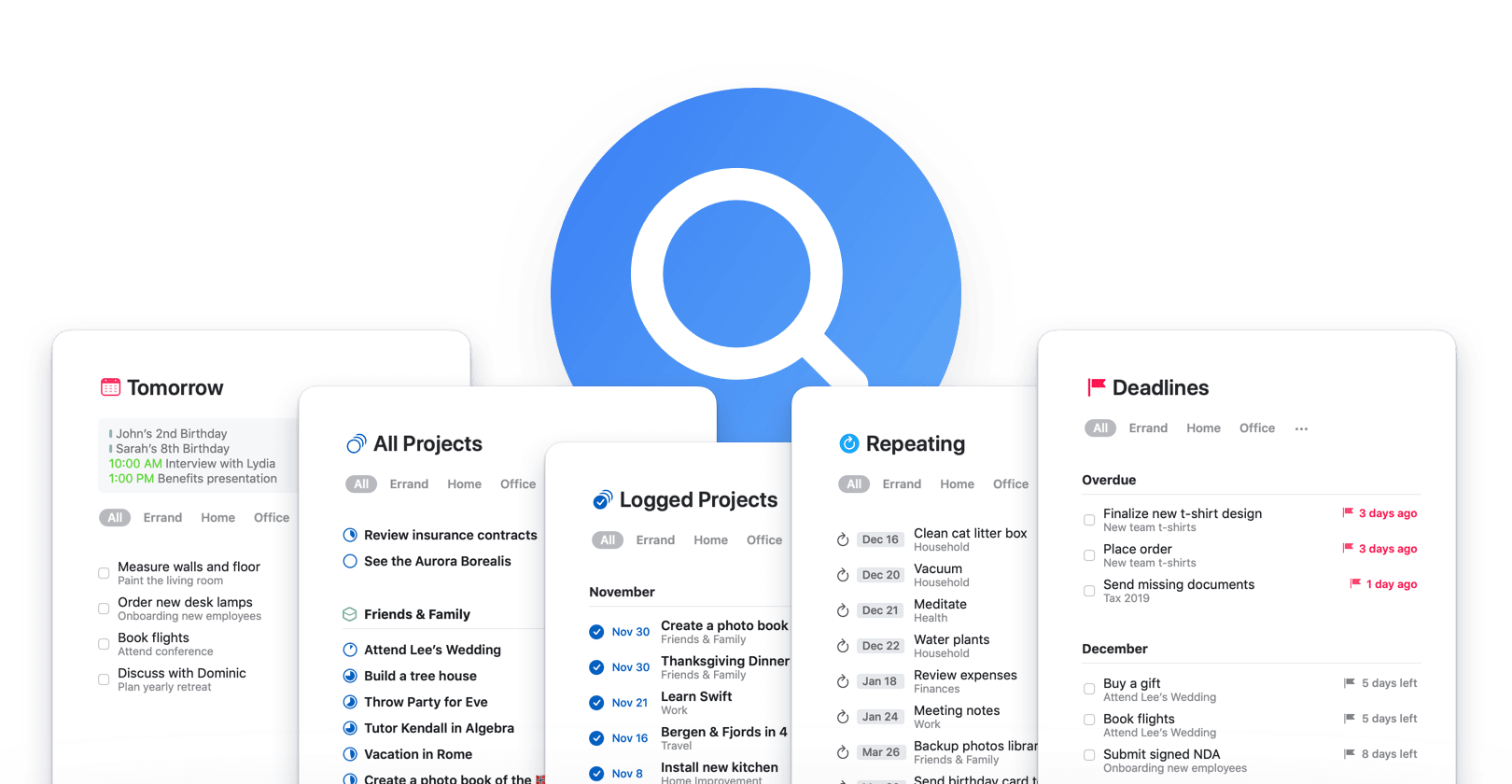
We’ve now extended Quick Find further with some great new lists that provide helpful perspectives on your data. To jump into these lists, simply type their name into Quick Find:
Deadlines – all your upcoming (or passed 😱) deadlines, neatly sorted.
Repeating – all your repeating to-dos in one, convenient place (finally!).
Tomorrow – a nice focused list to plan tomorrow, today.
All Projects – an overview of all your big goals.
Logged Projects – an overview of your past achievements.
For those of you geeking out on Things URLs – yes, they’re supported 🤓
While technically not a list, note that you can also type “Settings” (or “Preferences”) to quickly get there. No more digging for that Settings button!
Quick Find – Recents
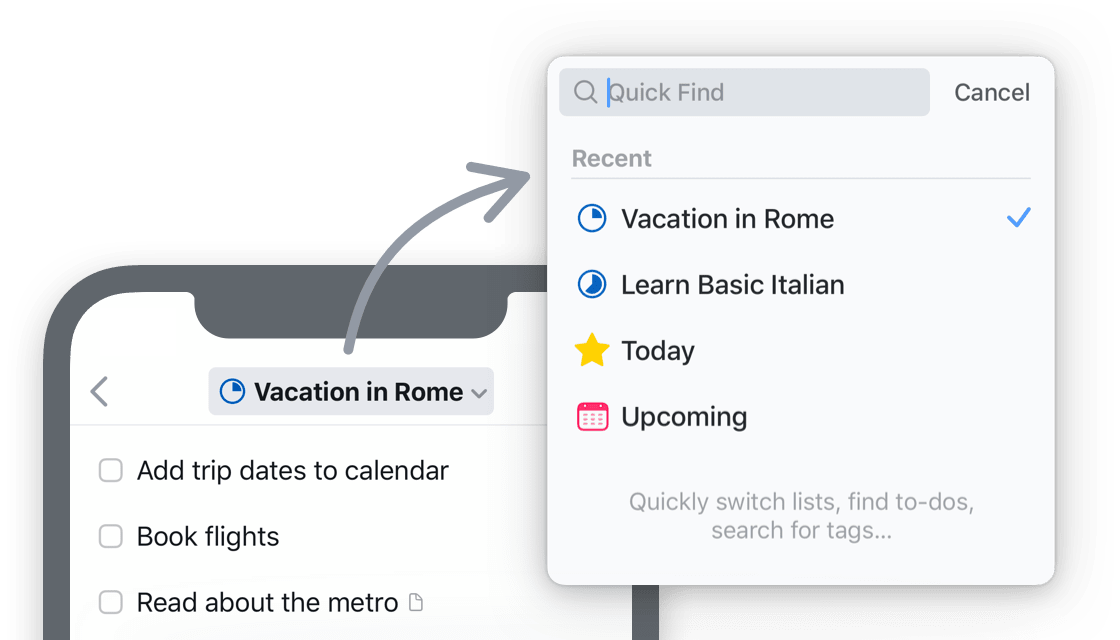
Sometimes, if you’re deep down in a list, accessing Quick Find can be quite a journey – you have to scroll all the way back to the top to invoke it. No more!
Now just tap the list’s title and you’re ready to go.
Better yet, Quick Find now shows your recently-viewed lists, so you can hop around without even typing, which is particularly great on iPhone.
Quick Find remembers where you’ve been, so hopping back is easy.
Quick Find – Headings
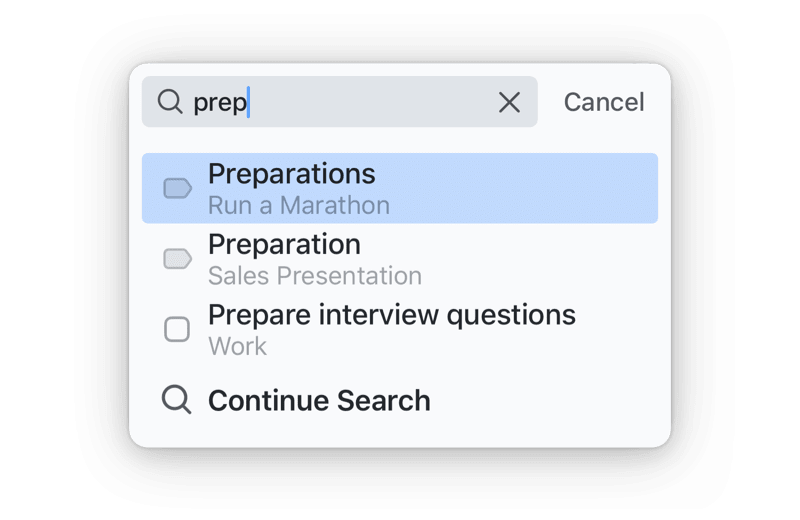
Many of you pointed out that projects’ headings should be found when you search for them – and of course, that makes sense! So all your headings are now included.
Of course, their inclusion in Quick Find doesn’t just help you locate them – it allows you to navigate to them, making your movements around the app
more precise.
A project’s heading in search results.
A few more things…
We’ve also snuck in a few other small-but-great improvements that we know some of you will really appreciate:
You can now see the date when an item was created or completed with a new Get Info option.
The following prefixes are now recognized as bullets and stripped out when pasting into to-do lists or checklists: •, *, - [ ]
When typing the time on systems set to a 12-hour clock, the date parser now chooses AM/PM more intelligently (and offers both options in some cases).
On Mac, you can now hold down Cmd when clicking a link to open it in the background.
On Mac, when inside an area or the new All Projects list, you can now insert a project with a button in the toolbar or Touch Bar.
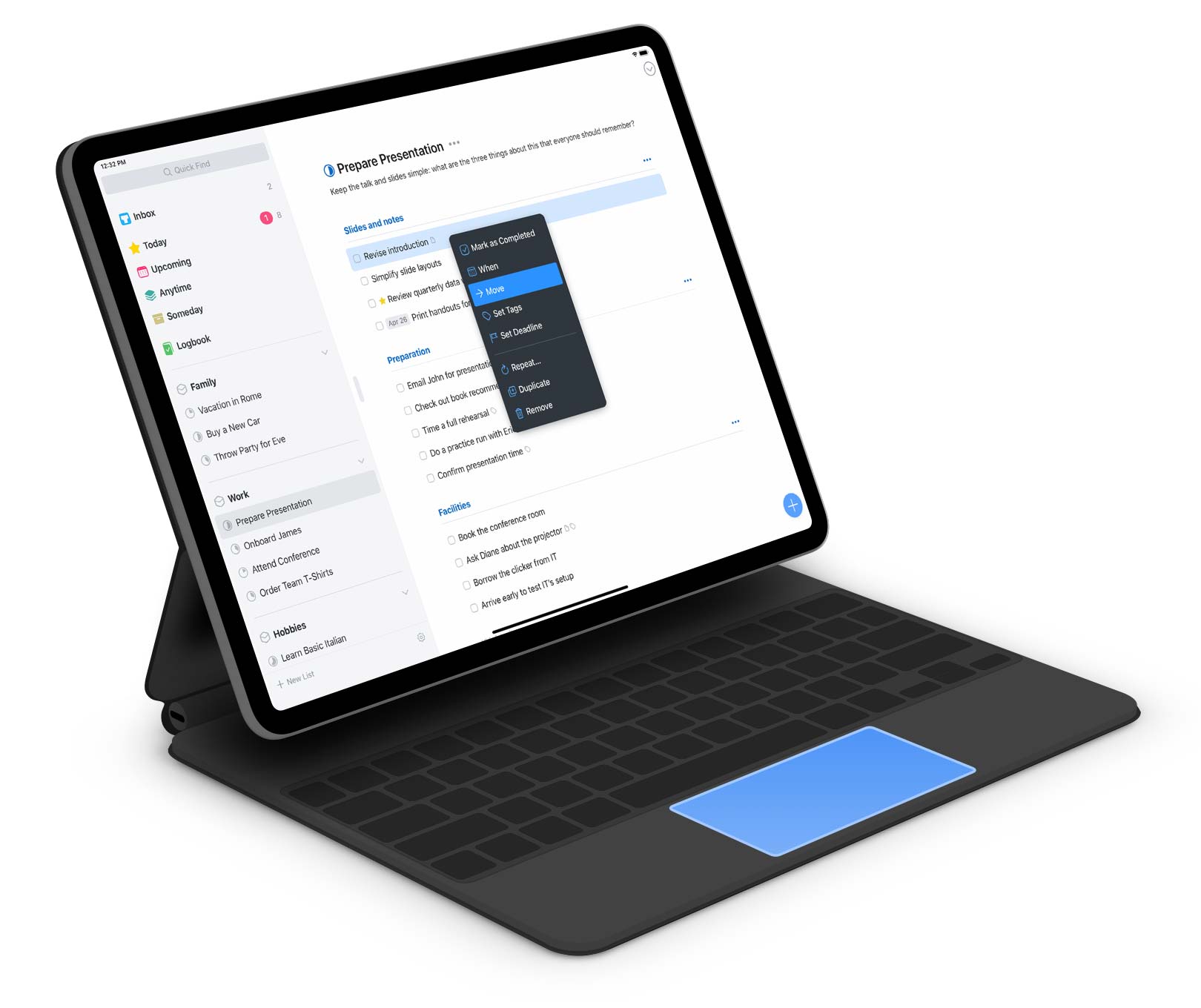
And finally, we’ve increased the sidebar width on larger iPad Pros to accommodate those longer project titles 🙌🏻
Things 3.11 is available for download now on Mac, iPad, and iPhone.
We hope you’ll enjoy these improvements.
From all of us here at Things, Happy Holidays! Thanks for a great year, and see you in 2020.
We’ve just released Things for Mac 3.10, which brings full compatibility for the latest version of macOS.
This update contains a few tweaks and fixes to ensure that everything runs smoothly on the new OS. Note also that it’s now possible to automatically switch
to Dark Mode at sunset. Just go to View → Appearance and make sure it’s set to Automatic.
Our Reminders integration on the Mac has seen the same overhaul as on iOS. And we’ve built an import feature so you can migrate an entire Reminders database
over to Things (go to File → Import).
Things 3.10 requires macOS 10.13 or later, and is available for download now.
iPadOS has just been released, and Things has three great new features you should try out: Multiple Windows, a Home Screen Widget, and Conversational Shortcuts.
Multiple Windows on iPad
One of the great things about working on a Mac is that you can open multiple Things windows to view more than one list at a time. Today – after you upgrade
to iPadOS and Things 3.10 – you can do it on your iPad, too.
Opening a second window is easy. Just tap & hold Things’ icon in the dock, then drag it to the side of your screen. Et voila – two windows! Now you can
drag & drop between them to get organized.
Open two windows, then drag & drop to organize.
If your iPad has a physical keyboard, Things is a real powerhouse with lots of shortcuts.
Today we’ve added three more for controlling your windows.
⌘ CmdCtrlN – new window
⌘ Cmd` – switch between two windows
⌘ CmdW – close window
If you want to see all currently open windows, just tap & hold Things’ icon and choose Show All Windows. From here, you can also swipe a window upwards
to close it.
See Today on your Home Screen
iPadOS also introduces a great new layout for the Home screen, which can now display pinned widgets. We’ve tweaked Things’ widget and it looks great
in both Light and Dark Modes.
Stay on track throughout the day with Things on your Home Screen.
Conversational Shortcuts
There’s also an exciting new feature this year called conversational shortcuts: a new way to create to-dos by speaking to Siri.
To create a conversational shortcut, use Things’ Add To-Do action in the Shortcuts app. But instead of entering a title for your to-do, simply set it
to Ask Each Time.
Now when your shortcut runs, Siri will ask you: “What’s the title?”
Simple
Advanced
This is a simple shortcut, but it’s a fantastic way to create to-dos without typing a thing. And of course you can easily augment it by having Siri Ask Each Time for other things, such as which list to save your to-do in, what tag it should have, and so on.
Plus!
Of course, all the great features that came to iPhone last week are now available on iPad, too:
Dark Mode integration to switch Things’ appearance at sunset.
The new Share Extension that lets you target a list.
Accessibility improvements with VoiceOver and Voice Control.
A new Reminders importer for migrating to Things.
And support for the new system-wide gestures for editing text.
Things 3.10 is packed with features we think you’re going to love, and you can get it now for iPad and iPhone.
An update for macOS Catalina is also in the works, and that should arrive in October.