Learn how to make to-dos and projects repeat on any schedule you set.
Repeating to-dos handle your routines for you, like a daily workout or a monthly bill payment. Set the pattern once, and Things automatically puts a new to-do in your Today list when you need to see it.
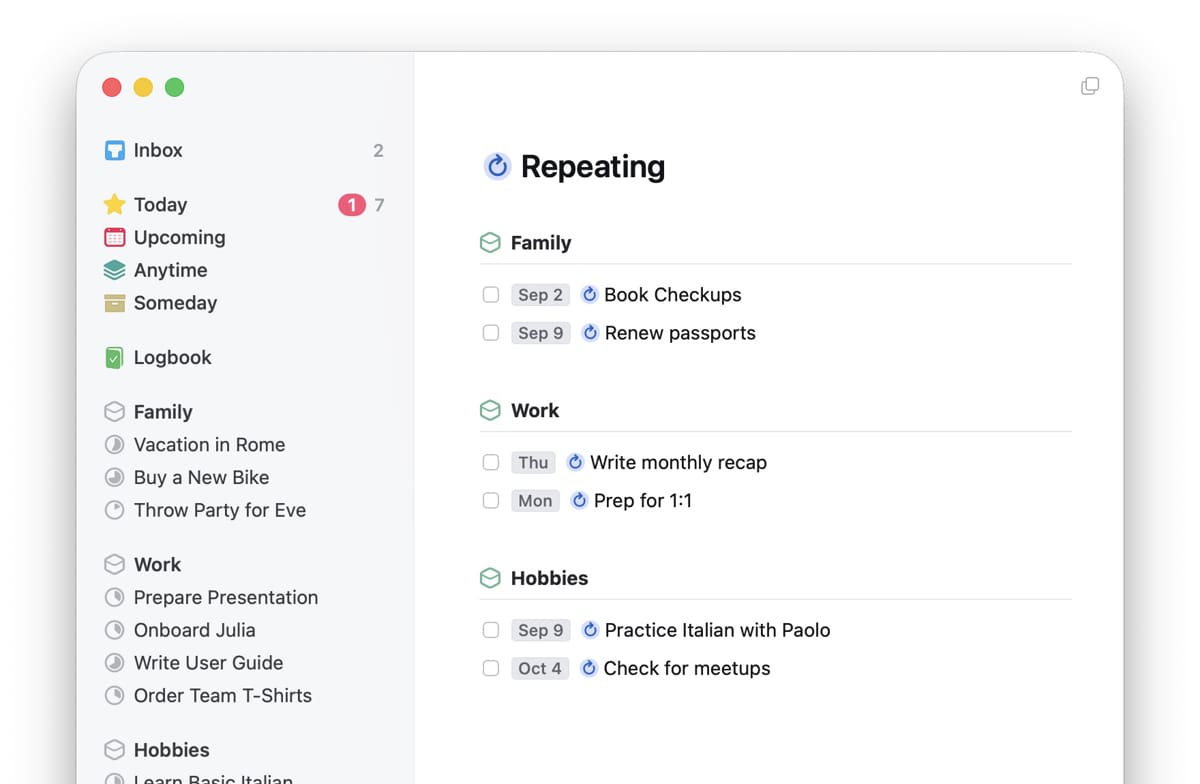
Read on to learn how to set up, edit, and stop repeating to-dos and projects.
Create a repeating to-do
Mac
- On your Mac, open Things.
- Click File → New Repeating To-Do.
- Set the pattern: to-dos can repeat after completion or daily/weekly/monthly/yearly.
- Click OK to save it.
You can also make an existing to-do repeat. Select it, and then in the menu bar at the top of your screen, click Items → Repeat.
iPad & iPhone
- On your iPad or iPhone, open Things.
- Tap Plus to create a new to-do, and fill out all the details you need.
- Tap the button in the upper right to dismiss the keyboard.
- Tap More → Repeat at the bottom of your screen .
- Set the pattern: to-dos can repeat After Completion or Regularly (every day/week/month/year).
- Tap Save.
You can also make an existing to-do repeat. Open it, then tap More → Repeat at the bottom of your screen.
iPad users with a hardware keyboard can also use a keyboard shortcut.
Learn about repeat patterns here. To repeat only on certain days, see here. To make changes to a repeating to-do, edit its template.
Create a repeating project
First, create a regular project and set it up exactly as you want it to appear each time it repeats. This project becomes the template Things will use for every future copy. Then follow these steps to make it repeat:
Mac
- On your Mac, open Things.
- Enter one of your Projects.
- Next to the project’s title, click More → Repeat.
- Set the pattern: projects can repeat after completion or daily/weekly/monthly/yearly.
- Click OK to save it.
iPad & iPhone
- On your iPad or iPhone, open Things.
- Enter one of your Projects.
- Next to the project’s title, tap More → Repeat.
- Set the pattern: projects can repeat After Completion or Regularly (every day/week/month/year).
- Tap Save.
iPad users with a hardware keyboard can also use a keyboard shortcut.
Learn about repeat patterns here. To repeat only on certain days, see here. To make changes to a repeating project, edit its template.
Add Reminders and Deadlines
Add reminders
If you need to start working on a repeating to-do or project at a specific time on the day it appears, you can add a reminder. Set it up while creating the repeating to-do/project, or edit the template later to add it.
Add deadlines
If a repeating to-do or project has a hard due date, you can give it a deadline.
In the repeating template, tick the Add deadlines checkbox. The deadline will always fall on the same day the to-do is set to repeat on. If you need to see the to-do in Today before that date, enter a number in the days earlier field. Here’s an example to show how it affects your to-do:
- Your repeating to-do is set to repeat on the 15th of each month.
- You tick Add deadlines and enter “5” into the days earlier field.
- The to-do now appears on the 10th — five days early — with the deadline set to the 15th.
Repeat on selected days
If you want to repeat something only on certain days – only weekdays, for example, or on every 3rd Tuesday each month – here’s how to set this up:
Mac
- On your Mac, open Things.
- Click File → New Repeating To-Do.
- Set Repeat to weekly (or monthly or yearly).
- Use the + button to add all the days on which you want the to-do to appear.
- Click OK.
iPad & iPhone
- On your iPad or iPhone, open Things.
- Tap Plus to create a new to-do, and fill out all the details you need.
- Tap the button in the upper right to dismiss the keyboard.
- At the bottom of your screen, tap More → Repeat.
- Select Regularly and set Every to weekly (or monthly or yearly).
- Tap On and select all the days on which you want the to-do to appear.
- Go Back, then tap Save.
Follow the same steps to repeat projects on a custom schedule.
Edit or stop repeating to-dos & projects
Behind every repeating to-do or project is a template. It contains the repeating rule and the title, notes, tags, and everything else you’ve set up. Every time a repeating item appears in Today, it’s a copy made from this template.
If you want to make any changes to a repeating to-do or project, you have to edit its template. Here’s how:
- Open Things.
- Locate the template.
- In Quick Find, type “repeating” and select the Repeating list from the results.
- Alternatively, inside the copy in Today, hit “This is a copy of a repeating to-do”. It’ll take you straight to the template.
- The template has a blue circle arrow in front of the title. Open it to make any of the following changes:
- Edit its title, notes, tags, or checklist. Going forward, all future copies will include these changes.
- Hit the repeating rule, then select
- Edit Rule… to change its pattern.
- Create Next Copy to create a copy scheduled for the next repeating date.
- Show Previous Copy to jump to the previous copy.
- Pause to stop generating new to-dos until you resume it.
- Resume to start the repeating cycle again.
- Stop to turn your template into a regular to-do and stop new copies from being created.
You can also select multiple repeating to-dos and pause, resume, or stop them together.
View the Repeating list
Templates and their copies appear in the Repeating list. You can find it by typing "repeat" into Quick Find.
- Grouping: Repeating to-dos and projects are grouped. Loose repeating to-dos at the top, and those that live in projects and areas are neatly arranged under their parent.
- Order: Items appear in order of their next occurrence: soonest first, latest last.
- Paused & waiting: Templates with these statuses appear at the bottom of the list.
Of course you can also view repeating templates and their copies in the Upcoming list or their parent project or area.
Q & A
- Can I complete a repeating to-do early?
- Yes. Just check off its template or scheduled copy in Upcoming.
- My changes to a repeating to-do don’t stick.
- If you are making changes to a repeating to-do but the next time the to-do appears those changes are gone, you have edited the copy of the repeating to-do, not the template. In order for changes to stick and appear in future copies, you must edit the repeating template. Here’s how.
- Why can’t I check off the checklist in my repeating to-do?
- You can’t complete checklist items inside the repeating template, only inside the copy.
- Why can’t I make a to-do repeat? The menu option is missing.
- If the to-do is a copy made from a repeating template, you can’t make it repeat because you already have a template that does that for you. If a to-do lives inside a repeating project, it can’t have its own repeating schedule.
- Can I make changes to multiple repeating to-dos at once?
- Yes. You can pause, resume, or stop multiple repeating to-dos at once. You can’t, however, change the repeating schedule of a batch-selection.