Tips & Tricks: This article is part of a series of articles that offer ideas on using Things in your daily life – it’s meant to inspire and guide, not dictate. Feel free to adapt the suggestions to fit your needs.
Every day, you are faced with tasks from different parts of your life, and Things is the place to collect them all.
Areas () help keep everything tidy. They can hold related projects and to-dos, organized around a theme: health, finances, or various work responsibilities, for example. Unlike projects, areas are ongoing and can’t be completed, serving as a continuous framework for different parts of your life.
You might have already set up some, like Personal and Work, and that’s a great start. But splitting those up into more focused topics can help improve how you work. Let’s take a closer look.
Why focused areas work better
Imagine you’re a teacher: you teach English and History, and you run the school’s photography club. At home, you’re a parent and a spouse. With a simple “Work” / “Personal” split, your lesson plan for next week ends up alongside a photography club budget and a parent-teacher meeting — all under “Work”, all pulling your attention in different directions. At home, a date night to plan sits next to the reminder for a monthly bill.
That clutter of unrelated to-dos has a real cost. Every time you look at your list to pick out the next task, your brain has to sift through everything in that pile to find what’s actually relevant right now.
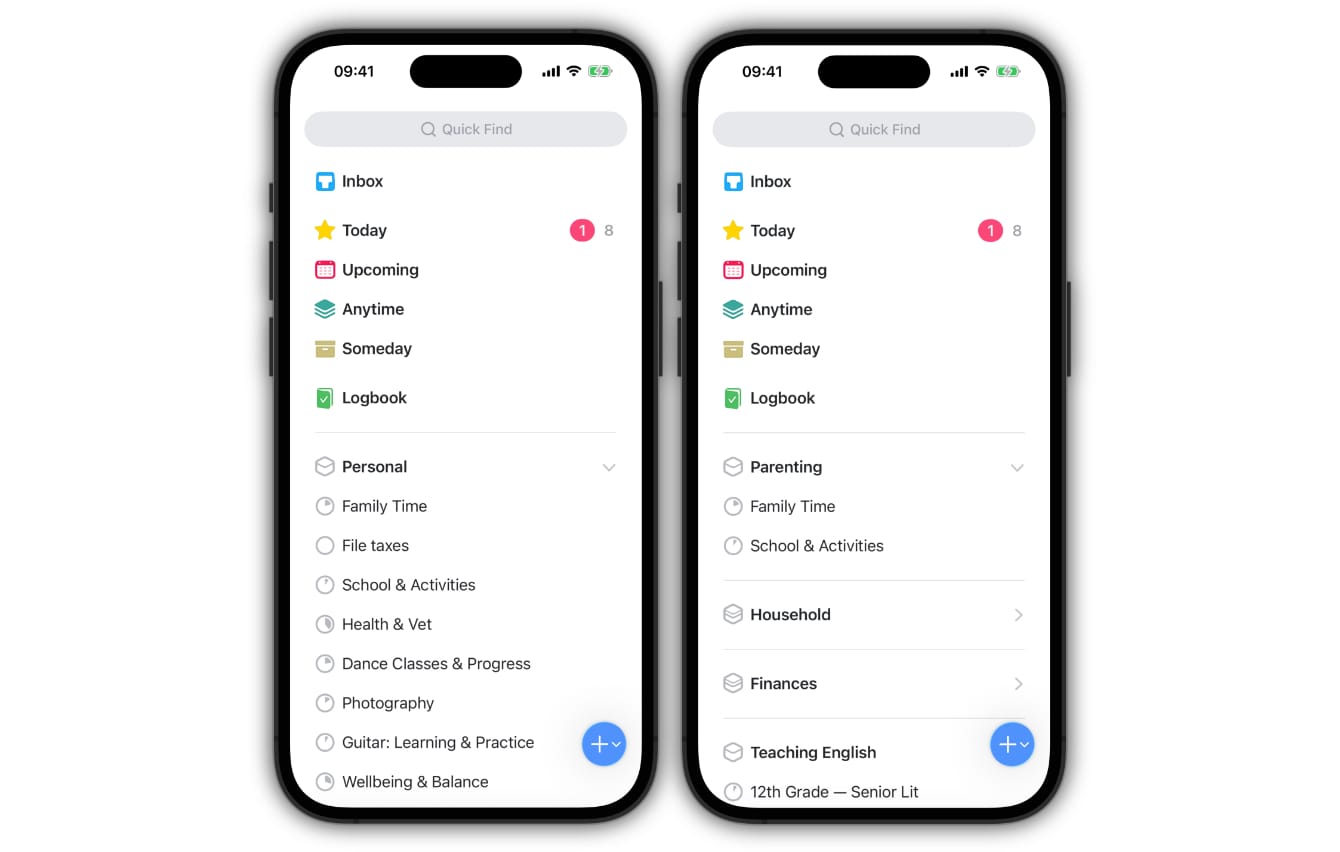
That friction disappears when you split up broad topics like “Work” and “Personal” into focused areas. Each area contains only what belongs there, so stepping into one is enough to narrow your focus automatically.
“Work” would turn into:
- Teaching English
- Teaching History
- Photography Club
Your “Personal” area could split into:
- Parenting
- Household
- Health
Get more out of Things with focused areas
The main benefit of breaking down areas is simple: open Things, and everything that matters to you is there, with every part of your life neatly in its place.
Breaking down areas can also change how you work. Here are some tips:
Focus on just one area
Opening an area is a simple way to narrow your focus. But its to-dos also appear in lists like Upcoming, alongside to-dos from other parts of your life. What if you’re planning ahead for the school’s photography club and want to see only the to-dos from that area and its projects?
Tags () make this possible. They are labels that let you categorize to-dos and filter your lists. You can assign a tag to an entire area, and every to-do inside will inherit it automatically — including to-dos inside projects that live in that area. No need to tag each to-do individually.
To see what you’ve planned for the photography club, give its area the tag Club Activities. Then filter Upcoming by that tag.
Bring related areas together
Some responsibilities are distinct enough to deserve their own area, but still belong to the same broader topic.
All your work-related areas can share a common tag, like Work. Filtering the Today list by Work lets you tune out personal stuff while on the job.
With search, you can also find every work-related to-do across all areas and projects and see them in a flat list. Here’s how: In Quick Find, type “work” and choose Continue Search to expand the search to include everything. Finally, filter the search results by Work.
Organize the Today list
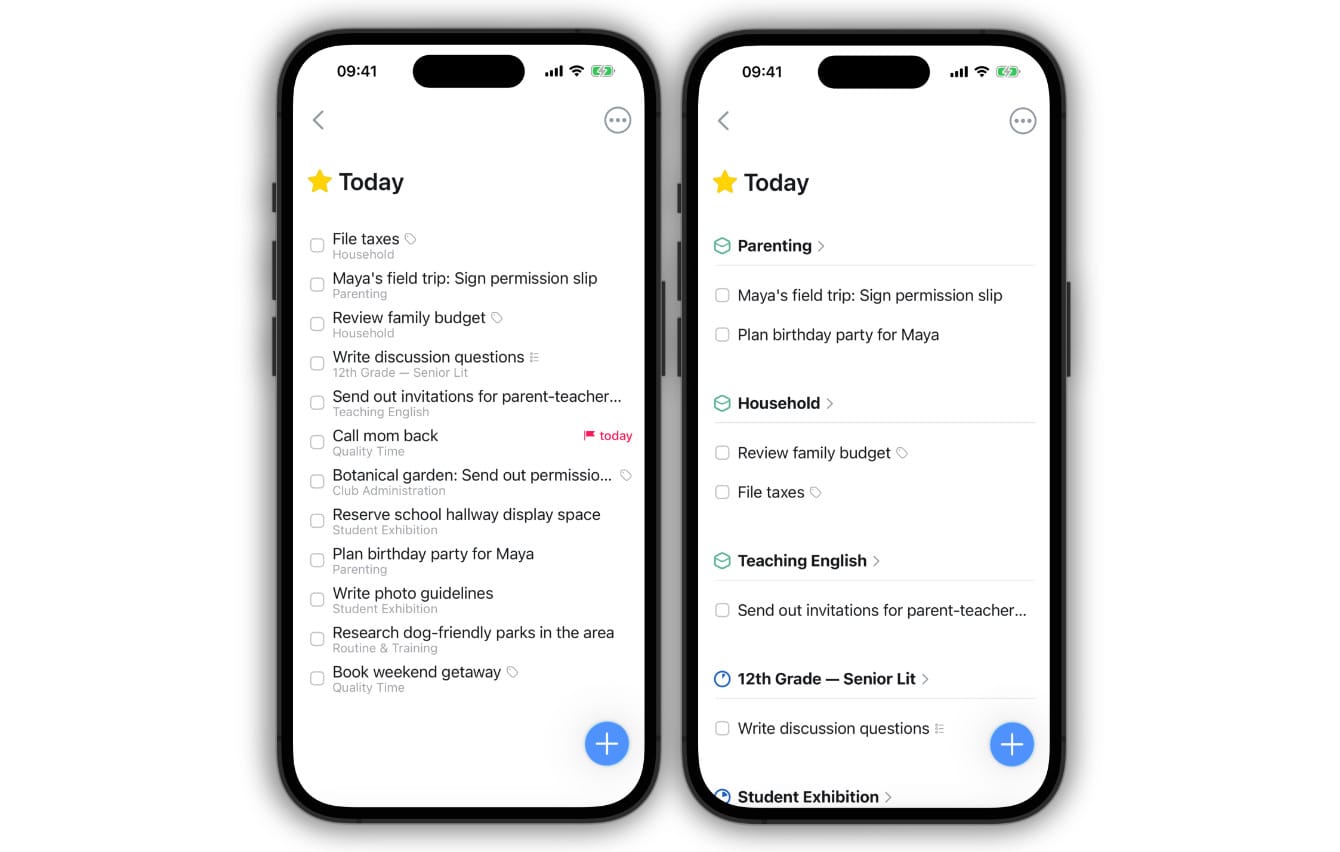
You can group your to-dos in Today by area or project. If you have a lot of things to go through during the day, this brings structure into your list and makes it easier to find what you’re looking for. Give it a try and see if it works for you.
How to get started with more areas
If you’re eager to make some changes to your setup, here are a few easy steps to follow:
- List your responsibilities. Think “roles I actively maintain” rather than every interest.
- Create one area per responsibility.
- Move existing projects to their new areas; create new ones as needed.
- Add tags. Unique tags for each area, and shared tags for similar areas.
Here’s one more tip: create a widget to pin crucial information to your Home Screen.
We hope this inspires you to take another look at your areas. By breaking up large themes into more focused topics, you can better mirror your responsibilities in Things and easily narrow your focus when necessary.
Find more resources to support this workflow below, and if you need any extra help, get in touch with our support team.